Monday, June 30, 2014

Javaodraw installation in BOSS 5.0

1.Go to the following link


2.Download the jaxodraw-2.1-0-bin.tar.gz file.

3.Extract the archive 

tar -xzf jaxodraw-xxx_bin.tar.gz

4.Run the jar file using java

java -jar jaxodraw-2.1-0.jar 

5.Now the Jaxodraw Window will open.

Monday, May 12, 2014

GRUB installation from BOSS Live CD/DVD

Boot the DVD and select the option live

open terminal

give the command as follows:
Note: mountedpartition is the partion, where OS is installed for eg: It might have mounted on /media/XXXXXXXXXXX/

Step I
----
#mount --bind /dev /mountedpartition/dev
#mount --bind /sys /mountedpartition/sys
#mount --bind /proc /mountedpartition/proc
----

Step II

#chroot /mountedpartition/
#grub-install /dev/sda
#exit

Finally restart your system.

Monday, April 21, 2014

Running SCILAB in BOSS


Copy the scilab.zip folder to Desktop in BOSS.

Right click the zip folder and give “Extract here” option.


Once the archive is extracted, go to the scilab folder. Go inside “bin” folder and locate “scilab” binary.


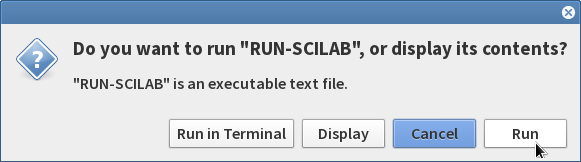
Double Click on “scilab” and give “Run” 


This will open and Run the SCILAB application in BOSS.

Once the SCILAB applciation is opened , click on Toolboxes → PSO 0.7 to load the PSO Toolbox.


Tuesday, February 18, 2014

Libreoffice Changes for tamil typing


Steps to change the libreoffice for tamil typing shown below through the screenshots.
Goto tools → options


Select the option in menu


select language settings --> languages 


To enable user interface install following package the select in the user interface option to tamil shown below in the screen shot.
sudo apt-get install libreoffice-l10n-ta


Thursday, January 30, 2014

How to Install BOSS linux dual OS With Windows 7


1.If Already dual OS image from existing hard disk should be clone to the new laptop hard disk.

Then issue will be solved.

2.Other format full hard disk using fdisk tool and create partions with logical volume not GPT enabled volume.

then install windows OS and BOSS Linux

Monday, December 23, 2013

Intel LM 217 Ethernet card Not Working in Boss Linux 5.0


1.Download the driver from intel website using the URL following

    http://downloadmirror.intel.com/15817/eng/e1000e-2.5.4.tar.gz


 Untar/unzip the archive, where is the version number for the
  driver tar file.

   tar zxf e1000e-.tar.gz

2. Change to the driver src directory, where is the version number
   for the driver tar:
   cd e1000e-/src/
3. Compile the driver module:
   # make install

   The binary will be installed as:
  /lib/modules/3.2.0-4-686-pae/kernel/drivers/net/ethernet/intel/e1000e/

   The install location listed above is the default location. This may differ
   for various Linux distributions.

5. Load the module using the modprobe command:
   modprobe e1000e

   With 2.6 based kernels also make sure that older e1000e drivers are removed
   from the kernel, before loading the new module:
   rmmod e1000e; modprobe e1000e
6. Assign an IP address to the interface by entering the following, where x
   is the interface number:
   ifconfig eth
7. Verify that the interface works. Enter the following, where IP_address
   is the IP address for another machine on the same subnet as the interface
   that is being tested:
   ping

Tuesday, December 10, 2013

How to install flash player in boss linux

follow the steps given below

1) if your system have internet connection type following command in gnome terminal

        sudo apt-get install flashplugin-nonfree

2)If you don't have internet connection download the flash plugin from adobe website link below

                     http://get.adobe.com/flashplayer/

then

 Copy the libflashplayer.so file into the following directory /usr/lib/mozilla/plugins/

for example if the file in /home//home/elcot/Downloads directory command should be like this below

sudo cp /home//home/elcot/Downloads/
libflashplayer.so  /usr/lib/mozilla/plugins/
Now the issue will be solved.

How to interact with the non-interactable Web Elements in Selenium

How to interact with the non-interact able Web Elements in Selenium    // Find the non-interactable element element WebElement element = dr...